
How to Resize Image for Instagram, Facebook, LinkedIn, and TikTok
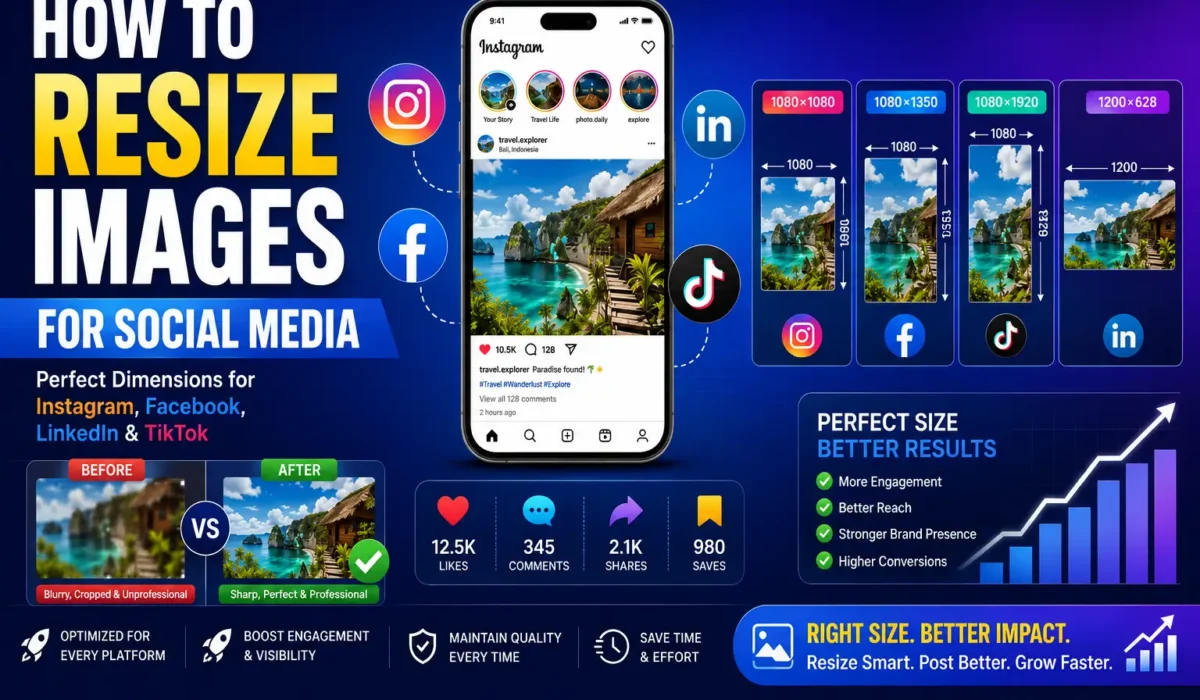
You’ve been busy for hours creating the post of your dreams. The lighting is perfect, the composition looks like it’s straight from a magazine, and your caption is on point. You publish with confidence. However, hours go by, and your engagement numbers are heartbreaking—a handful of likes, no shares, and no new followers. Fortunately, the secret to better engagement is learning how to resize images for social media correctly.
So, what went wrong? In most cases, the answer is surprisingly simple: your image was the wrong size.
Unfortunately, social media platforms don’t care about your artistic vision. When you upload an image that doesn’t fit their preferred dimensions, they automatically crop, stretch, or compress it to fit their templates. As a result, your content may appear blurry, awkwardly cropped, or unprofessional.
Image Resizer Tool:
Before diving into the recommended dimensions for each platform, you can save time by using imageresizer.tools to resize your photos in just a few clicks. Our free online tool makes it easy to resize images for Instagram, Facebook, LinkedIn, and TikTok without losing quality. Simply upload your image, choose the social media platform or custom dimensions, and download a perfectly optimized version ready to post. Whether you’re creating content for your business, personal brand, or marketing campaigns, imageresizer.tools helps you avoid blurry, stretched, or awkwardly cropped images, ensuring your posts look professional and perform better across every social media platform.
How to resize images in Instagram
Instagram is the undisputed leader of visual social media, and its image standards serve as the benchmark for the rest of the industry. With over two billion users, brands go under or thrive based on how they represent themselves visually.
Profile Photo (320 x 320 pixels)
- Displayed as a circle across the entire platform
- Represents your brand everywhere – from comments to direct messages
- Simplicity is key – complex images lose impact
- Think of this as your “visual handshake” – make it count!
To resize your image to 320 × 320 pixels, simply visit imageresizer.tools, enter the required dimensions, and create a perfectly sized image in seconds.
Best practice: Clean headshot or a simple, recognizable logo
Avoid: Busy backgrounds, text, or group shots
Feed Posts
Instagram offers three different formats, each serving different creative purposes:
Square Format (1080 x 1080 pixels)
- Represents the classic Instagram aesthetic that built the platform
- Predictable, reliable, and universally compatible
- Never gets cropped awkwardly
- Works well for almost any type of content
- A safe choice when you’re unsure which format to use
If you want to resize your image to these dimensions quickly and easily, visit imageresizer.tools and resize your images in just a few click.
Landscape Format (1080 x 566 pixels)
- Provides a widescreen effect ideal for scenic photographs
- Suitable for group portraits or capturing a wider shot
- Gives your content a cinematic look and feel
- Creates a visually striking presence in the feed
To resize your image to 1080 x 566 pixels, simply visit imageresizer.tools, enter the required dimensions, and create a perfectly sized image in seconds.
Portrait Format (1080 x 1350 pixels)
- Has been gaining significant popularity
- Takes up about 30% more screen space than a square image
- This extra real estate can directly impact engagement rates
- Harder to scroll past without noticing
To resize your image to 1080 x 1350 pixels, simply visit imageresizer.tools, enter the required dimensions, and create a perfectly sized image in seconds.
Pro Tips for
- Instagram’s algorithm slightly favors portrait images in the feed
- If your image works in multiple formats, try portrait for a potential engagement boost
- Always use high-resolution source images
- Do not compress images before upload – Instagram will handle compression for you
How to resize Image on Facebook:
The oldest platform in this lineup, Facebook remains essential for businesses, communities, and personal connections. With nearly three billion monthly active users, Facebook’s image requirements appeal to both desktop users and the growing mobile audience.
Profile Photo (320 x 320 pixels)
- Same dimensions as Instagram
- Displayed as a circle across the platform
- This uniformity lets you use the same profile picture on both platforms
- Saves time and maintains brand consistency
To resize your image to 320 x 320 pixels, simply visit imageresizer.tools, enter the required dimensions, and create a perfectly sized image in seconds.
Cover Photo (851 x 315 pixels)
- One of the most prominent visual elements on the entire platform
- Appears at the top of your page or profile
To resize your image to 851 x 315 pixels, simply visit imageresizer.tools, enter the required dimensions, and create a perfectly sized image in seconds.
The Challenge:
- Looks significantly different on desktop versus mobile devices
- On desktop: Displays as a wide rectangle spanning the page width
- On mobile: Cropped noticeably, often cutting off the sides
The Solution:
- Place the most important visual elements in the center of the image
- Ensures they remain visible regardless of how anyone views your page
- Avoid: Placing critical text or faces near the edges
Pro Tips
- Facebook’s compression algorithm is notably aggressive
- Always start with high-quality images
- Save images as PNGs rather than JPEGs to maintain quality
- A medium-sized JPEG (around 1MB) will look better than a heavily compressed image
How to resize images on LinkedIn
LinkedIn users might be more tolerant of less-than-perfect visuals, but the professional environment demands higher-quality images. A blurry or poorly sized LinkedIn picture can actively harm your credibility. This is why understanding how to resize images for social media is essential for your professional reputation.
Profile Photo (400 x 400 pixels)
- Your first impression on LinkedIn
- Arguably the most important image on the platform
- Professionalism is non-negotiable
- A well-lit headshot signals that you take your professional presence seriously
To resize your image to 400 x 400 pixels, simply visit imageresizer.tools, enter the required dimensions, and create a perfectly sized image in seconds.
Avoid:
Group shots, pets, or anything other than just you
Background Photo
Personal Accounts (1584 x 396 pixels):
- Extremely wide and challenging to work with
- Ideal for panoramic shots or personal branding
To resize your image to 1584 x 396 pixels, simply visit imageresizer.tools, enter the required dimensions, and create a perfectly sized image in seconds.
Company Pages (1128 x 191 pixels):
- Even wider format for business branding
- Perfect for team photos, office environments, or custom graphics
To resize your image to 1128 x 191 pixels, simply visit imageresizer.tools, enter the required dimensions, and create a perfectly sized image in seconds.
Feed Posts
- Increasing adoption of vertical formats (1080 x 1350 pixels)
- Significant shift from the desktop-centric approach
- As more professionals use LinkedIn on mobile, vertical images are more effective
- LinkedIn’s algorithm now prioritizes natively uploaded images over external links
Link Previews (1200 x 627 pixels)
- Remains important for link previews
- Properly sized preview images can greatly boost click-through rates
- Looks professional and trustworthy, encouraging clicks
To resize your image to 1200 x 627 pixels, simply visit imageresizer.tools, enter the required dimensions, and create a perfectly sized image in seconds.
Pro Tips
- LinkedIn’s users are less forgiving of poor-quality images
- A poor-quality photo can harm your professional reputation
- Properly sized images demonstrate attention to detail
- The ROI is well worth getting right compared to other platforms
How to resize image on TikTok
TikTok has transformed social media, making vertical video the norm and revolutionizing how people consume content. Inaddition to this TikTok’s meteoric rise, leveraging the platform has become imperative to reach younger audiences.
Profile Photo (200 x 200 pixels)
- Modest compared to other platforms
- Reflects TikTok’s focus on video rather than static imagery
- Circular crop by default
- Should be clear, recognizable, and representative of your brand
To resize your image to 200 x 200 pixels, simply visit imageresizer.tools, enter the required dimensions, and create a perfectly sized image in seconds.
Video Covers (1080 x 1920 pixels)
- Arguably more important than your profile photo for engagement
- The image displayed to users before they click your video
- Your primary visual marketing tool on the platform
To resize your image to 1080 x 1920 pixels, simply visit imageresizer.tools, enter the required dimensions, and create a perfectly sized image in seconds.
Best Practices:
- Use bright colors that stand out
- Include bold text that communicates value
- Express emotion through facial expressions
- Create curiosity that makes viewers want to click
Photo Carousels (1080 x 1920 pixels)
- Increasingly popular on TikTok
- Use the full 9:16 vertical format
- Vertical format is non-negotiable
- Requires thinking sequentially – each image tells part of a story
- Perfect for tutorials, before/after content, or informational posts
To resize your image to 1080 x 1920 pixels, simply visit imageresizer.tools, enter the required dimensions, and create a perfectly sized image in seconds.
Pro Tips
- TikTok’s algorithm favors content that keeps users engaged
- Vertical images covering the whole screen are more likely to hold attention
FAQ
What happens if I upload an image in the wrong size?
The platform automatically resizes it, sometimes cutting off at odd angles or distorting the image. Always use recommended sizes for the best results.
Can I use the same image on all platforms?
Technically yes, but you shouldn’t. Each platform has different requirements. Create platform-specific versions for optimal results.
What’s the best image format for social media?
- JPEG: Best for photos with good compression
- PNG: Best for graphics and transparent backgrounds (perfect quality)
- WebP : Best compression but not yet fully supported everywhere
How do I check image quality?
Zoom in to 200%. If it remains clear and sharp, it’s high quality. Also check the pixel dimensions in your editing software.
Does using the correct image size impact engagement?
Yes, significantly. Properly sized images look professional, load quickly, and occupy adequate screen space all leading to increased engagement.
How often do image sizes change?
Platforms update recommended dimensions once or twice a year. Check official guidelines periodically to stay current.
Final Thoughts: Resize images for social media
Choosing the right image dimensions for social media is essential for maintaining visual quality, improving engagement, and ensuring your content appears professional across Instagram, Facebook, LinkedIn, and TikTok. By using the recommended sizes for posts, Stories, and link previews, you can avoid blurry, cropped, or distorted images. As a result, you can create a better viewing experience for your audience and increase the effectiveness of your content.
Ultimately, using the right image sizes and efficient resizing tools allows you to create optimized visuals that drive more engagement, reach, and brand visibility across every platform. With the right image sizes and efficient resizing tools, you’ll be able to create optimized visuals that drive more engagement, reach, and brand visibility on every platform. Moreover, you may also find our guide to bulk image resizing tools helpful for streamlining your workflow and saving time when preparing content for social media.. Not only can it streamline your workflow, but it can also save valuable time when preparing content for social media campaigns.