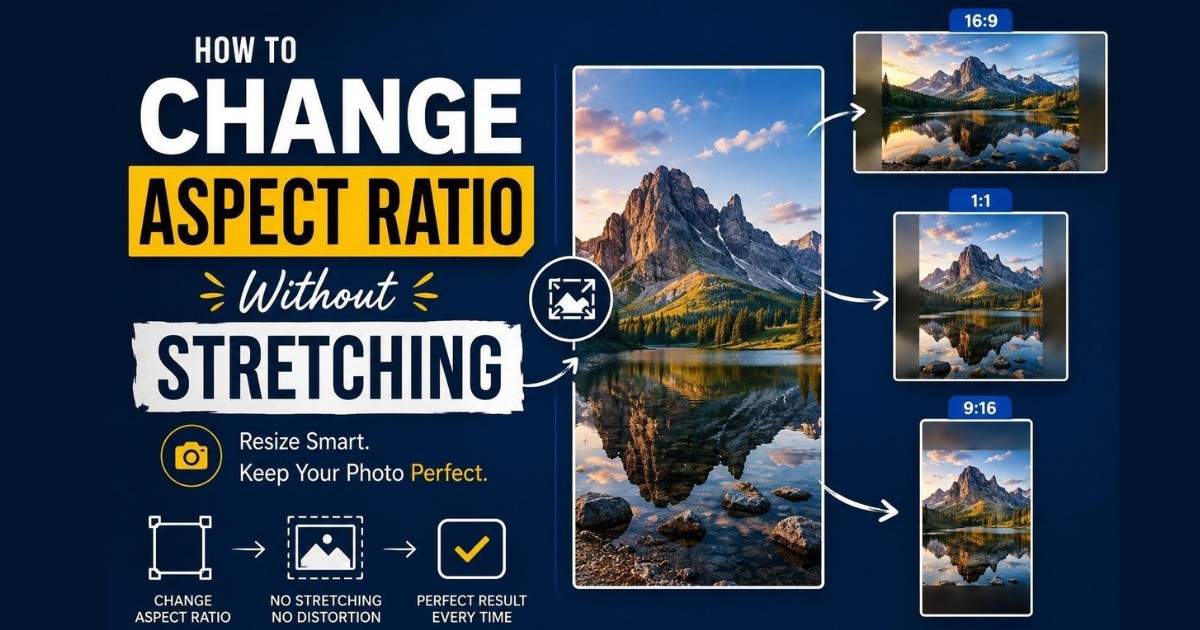
Change Aspect Ratio of Image Without Stretching
Photos are an important part of any blog, website or social media post. They make content more attractive and help readers understand information quickly. However, many people face a common problem when editing photos.
After changing the image size, the photo looks stretched or distorted. This happens when the width and height are adjusted incorrectly. Faces can look wider, objects can become thinner. Changing an image aspect ratio without stretching it is not difficult. You just need to understand a few simple techniques.
What Is Aspect Ratio
Aspect ratio is the relationship between the width and height of an image. It tells us the shape of a photo, not its actual size.
For example:
- 16:9 – A wide image format, ideal for videos, website banners and presentations.
- 1:1 – A perfect square, commonly used for profile pictures and social media posts.
- 4:5 – A taller format, best for portrait photos and mobile viewing.
- 3:2 – A balanced aspect ratio, widely used for photography and blog images.
Why Does a Photo Get Stretched?
A photo gets stretched when its width and height are resized separately, changing its original shape. This makes people, objects and products look unnatural.
For example:
- Increase only the width – The image looks too wide.
- Increase only the height – The image looks too tall and thin.
- Keep the original aspect ratio – The image stays natural and proportional.
What Is the Difference Between Resizing and Changing Aspect Ratio?
Resizing changes the image size but keeps the same shape.
Changing the aspect ratio changes the image shape, which may require cropping or adding space.
For example:
- Resize: 2000 × 1000 – 1000 × 500 (same shape, smaller size)
- Change aspect ratio: 16:9 – 1:1 (image is cropped or padded)
- Wrong aspect ratio change: Stretching the image makes people and objects look distorted.
| Resizing an Image | Changing the Aspect Ratio |
|---|---|
| Changes the image size (width and height). | Changes the image shape. |
| Keeps the same proportions. | Changes the proportions of the image. |
| The image looks natural. | May require cropping or adding space. |
| Does not stretch or distort the image. | Can stretch or distort the image if done incorrectly. |
| Example: 2000 × 1000 → 1000 × 500 | Example: 16:9 → 1:1 (square) |
Use Crop Method (Best Way)
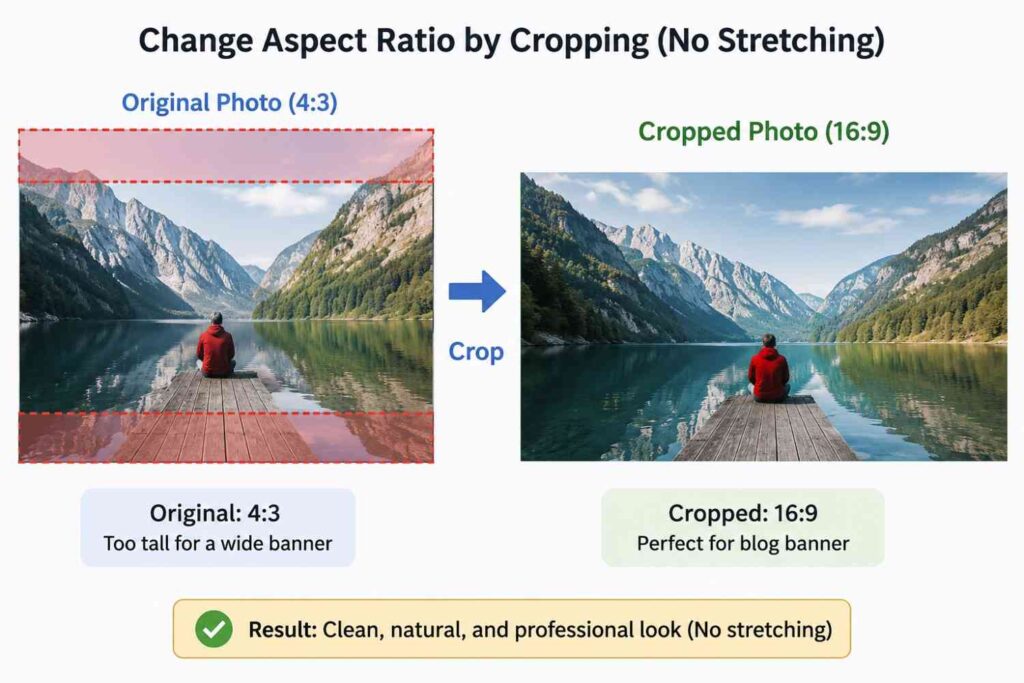
Cropping is the easiest and safest way to change the aspect ratio of an image. It removes extra parts of the photo instead of stretching it, so the image stays natural and clear.
For example:
- Original photo: 4:3 format
- Needed format: 16:9 banner
- Instead of stretching – crop top and bottom
- Result – clean, wide image with no distortion
Always Keep the Main Subject Safe
When cropping a photo, always identify the most important part first. This could be a person’s face, a product, a building, or any key element in the image. The goal is to remove unnecessary areas while keeping the subject visible.
Add Extra Space Instead of Cropping
You can add:
- White space
- Black space
- A solid color background
- A blurred version of the image
- A custom design background
This method keeps the full image visible. It also prevents stretching and distortion.
Use the Correct Resize Settings
Most editing tools like imageresizer.tools include a feature that protects images from stretching.
You may see options called:
- Lock Ratio
- Maintain Aspect Ratio
- Keep Proportions
- Constrain Proportions
These settings automatically adjust width and height together. If the width increases, the height increases proportionally. This keeps the image shape exactly the same. Whenever you resize a photo, make sure this option is turned on. It is one of the easiest ways to avoid accidental distortion.
Difference Between Fit and Cover
Fit:
Displays the entire image inside the frame without cropping, even if empty space appears around it.
Cover:
Example:
| Fit | Cover |
|---|---|
| Shows the full image inside the space. | Fills the entire space completely. |
| Nothing is cut or hidden. | Some parts of the image may be cropped. |
| May leave empty spaces around the image. | No empty space is visible. |
| Image looks smaller inside the box. | Image looks clean and full screen. |
| Good when you want to see the whole picture. | Good for banners, headers and backgrounds. |
Tools You Can Use
There are many tools available for changing aspect ratios correctly. Most of them offer crop and resize features.
1. ImageResizer.tools
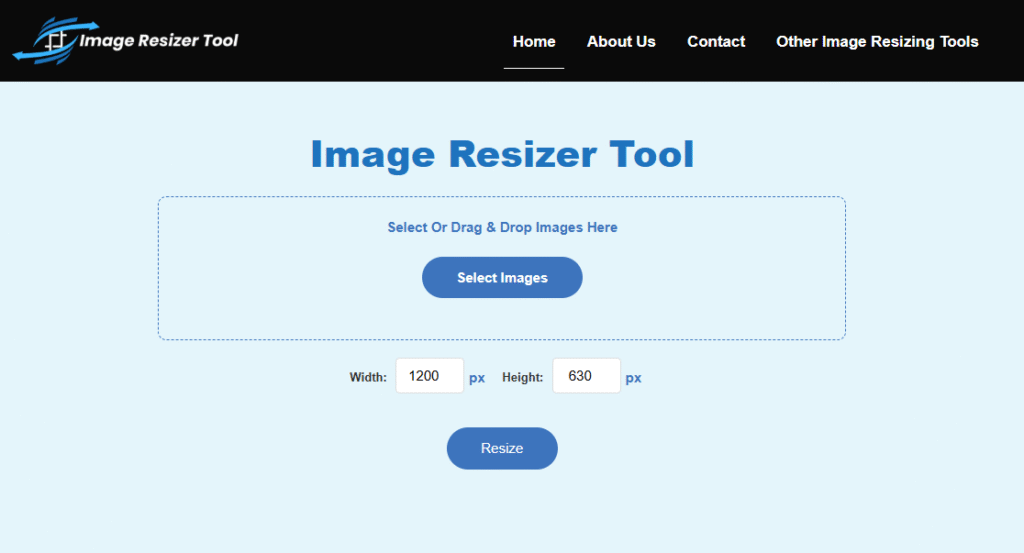
ImageResizer.tools is a simple online tool used for quickly resizing and adjusting image aspect ratios without needing any software installation. is a simple online tool used for quickly resizing and adjusting image aspect ratios without needing any software installation.
- Maintains original image proportions
- Simple drag and drop resizing
- No software installation needed
- Fast and friendly tool for edits
2. Canva
- Canva is easy to use and perfect for beginners.
- It provides ready made templates and simple cropping tools.
3. Adobe Photoshop
- Photoshop is one of the most powerful image editing programs available.
- It offers complete control over resizing, cropping and canvas adjustments.
4. GIMP
- GIMP is a free alternative to Photoshop.
- It includes many professional editing features.
5. Figma
- Figma is popular among web and graphic designers.
- It allows users to resize and crop images faster.
Best Aspect Ratios for Blog Images
Different types of images need different shapes and sizes.
| Aspect Ratio | Where can you use it | Common Examples |
| 16:9 | Blog banners, website headers and videos | Wide landscape photos |
| 1:1 | Social media posts and square designs | Product photos and profile pictures |
| 4:5 | Portrait images and mobile designs | People and vertical photos |
| 3:2 | General photography and blog images | Travel and lifestyle photos |
Image Quality Is Also Important
Good image quality improves the overall appearance of your content. It also helps create a better experience for readers.
- JPEG is best for regular photo Most blog images use this format.
- PNG for images with a transparent Are usually larger than JPEG files.
- WebP for a smaller file size with good
Common Mistakes to Avoid
Avoiding these mistakes can improve your results immediately.
1. Stretching the Image
- Never drag only one side of the image.
- This changes its proportions and causes distortion.
2. Cropping Too Much
- Do not remove important parts of the photo.
- Always check that the main subject remains visible.
3. Using Very Large Images
- Huge image files can slow down website loading times.
- This can hurt user experience.
4. Using Very Small Images
- Small images may look blurry on larger screens.
- Always choose appropriate dimensions.
5. Ignoring Mobile Devices
- A photo that looks good on a desktop may look different on a phone.
- Always test images on multiple screen sizes.
Why Aspect Ratio Is Important For Bloggers?
A blog image is the first thing readers notice. It creates the first impression of your content.
- Proper image size makes your site look professional.
- It keeps content clean and easy to read.
- Better images improve user engagement.
- Correct sizes help websites load faster.
- Stretched images look unprofessional and reduce trust.
- Understanding aspect ratio is important for bloggers.
Conclusion
Changing the aspect ratio of a photo is easy when you use the right method. Avoid stretching the image. Instead, crop it, add extra space or keep the proportions locked to maintain its natural look.
Using the correct ratio makes your photos look better on websites and social media. Well sized images also make your content look more professional and improve the viewing experience for your audience.
Frequently Asked Questions
1. What is aspect ratio?
It is the shape of a photo based on its width and height.
2. Why do photos get stretched?
Because width and height are changed without keeping the original shape.
3. How can I change aspect ratio safely?
By cropping, not stretching the image.
4. What is the easiest way to resize a photo?
Use crop tool or add space around the image.
5. Does cropping reduce image quality?
No, cropping does not affect quality.
6. What is the difference between resizing and aspect ratio?
Resizing changes size and aspect ratio changes shape.
7. What is the best option for blog images?
Use “cover” for clean and professional look.
8. How do I avoid stretching a photo?
Always keep the “lock ratio” or proportions ON.
9. Which format is best for blog images?
JPEG for normal photos and PNG for transparent images.
10. Can I keep a full photo without cropping?
Yes, by adding background space around it.