
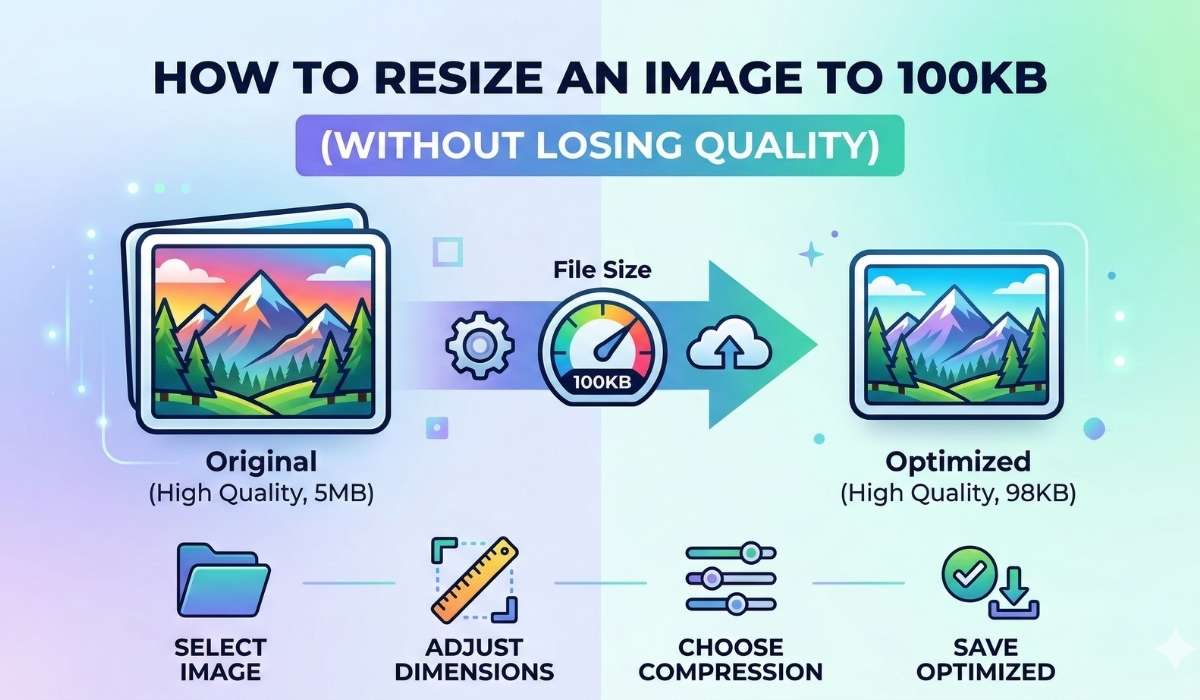
How to Resize an Image to 100KB (Without Losing Quality)
Have you ever tried to upload a photo to a job application, a government portal, or even a social media profile, only to get an annoying error message?
“File size too large. Maximum limit: 100KB.”
It’s a common headache. Most high-quality photos taken on a smartphone today are anywhere from 3MB to 10MB. Shrinking a 5MB file down to 100KB (which is 50 times smaller!) feels like it would turn your beautiful photo into a blurry, pixelated mess.
The good news? It doesn’t have to. In this guide, I’m going to show you exactly how to resize an image to 100KB quickly, for free, and while keeping the quality looking sharp.
Why Do You Need to Resize Images to 100KB?
Before we dive into the “how,” let’s talk about the “why.” Why is 100KB the magic number for so many websites?
-
Website Speed: If you’re a blogger or business owner, large images kill your site speed. Google loves fast websites, and small images are the easiest way to rank higher.
-
Storage Limits: Email providers and cloud storage often have limits. Keeping files under 100KB ensures you never run out of space.
-
Official Requirements: Most online forms (for passports, exams, or visas) strictly require small file sizes to keep their databases running smoothly.
The Easiest Way to Resize an Image to 100KB (Step-by-Step)
To get this done without downloading heavy software like Photoshop, we are going to use Resize Image to 100 KB. It’s a dedicated tool built specifically for this task.
Step 1: Upload Your Photo
Open the website. You’ll see a clean upload area. You can either click the button to browse your files or simply drag and drop your image directly onto the page.
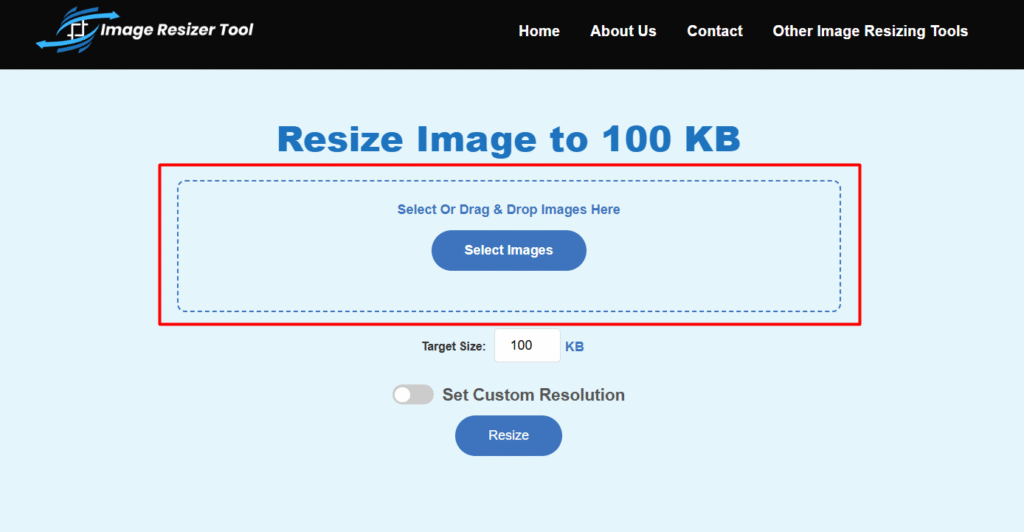
Uploading a large image to ImageResizer.Tools
Step 2: Set Your Target Size to 100KB
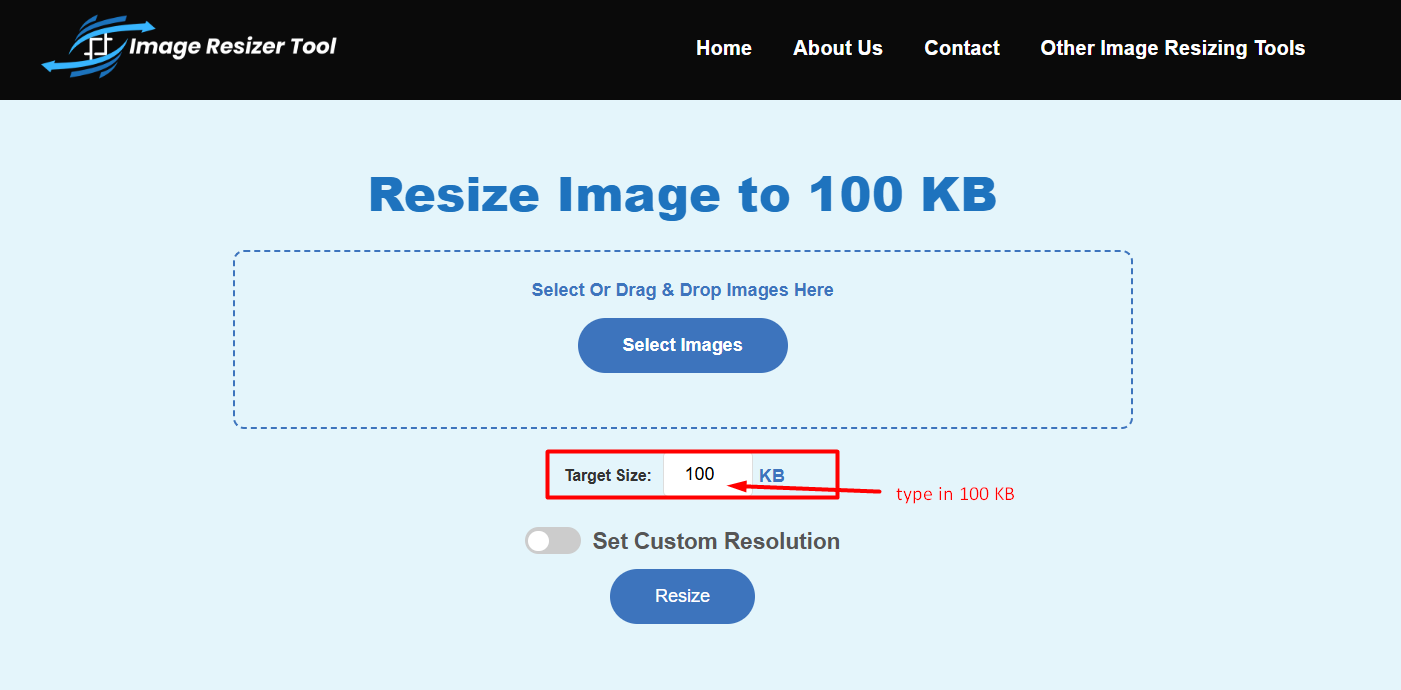
Setting the output size to 100KB
Step 3: Optional Adjustments (Quality vs. Dimensions)
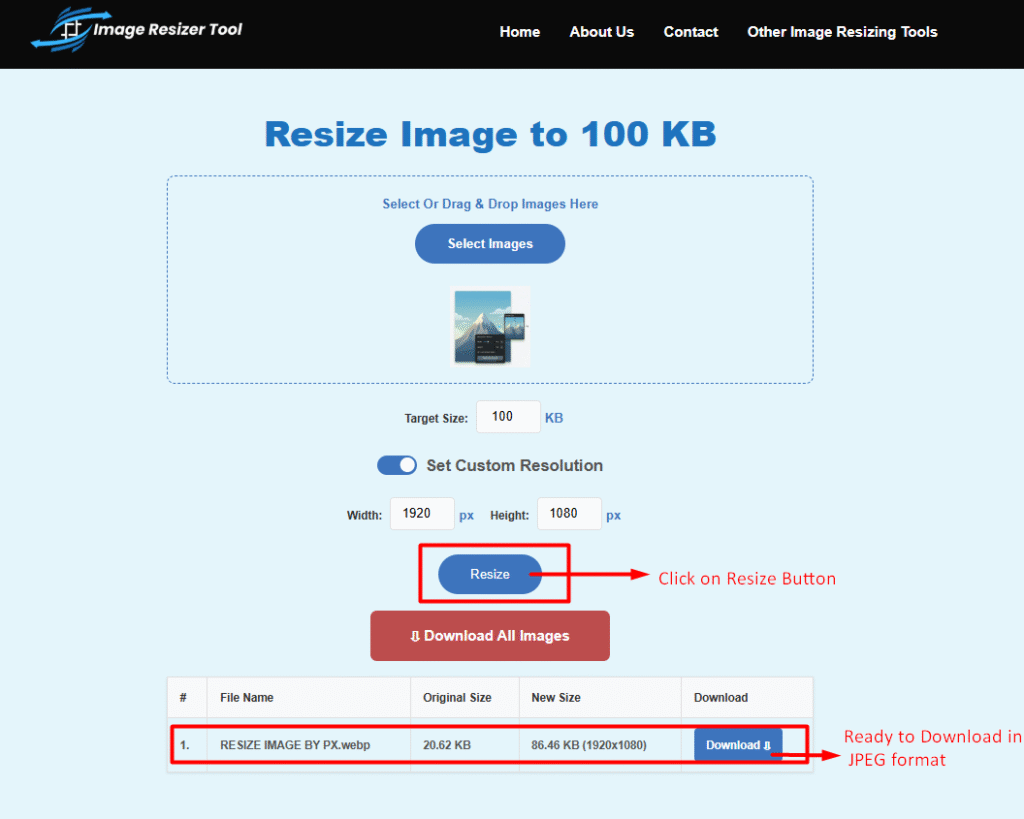
If you want even more control, you can adjust the dimensions (width and height). However, the default settings work perfectly for most people. The AI behind the tool will automatically balance the compression and make sure image stays clear while hitting that 100KB limit.
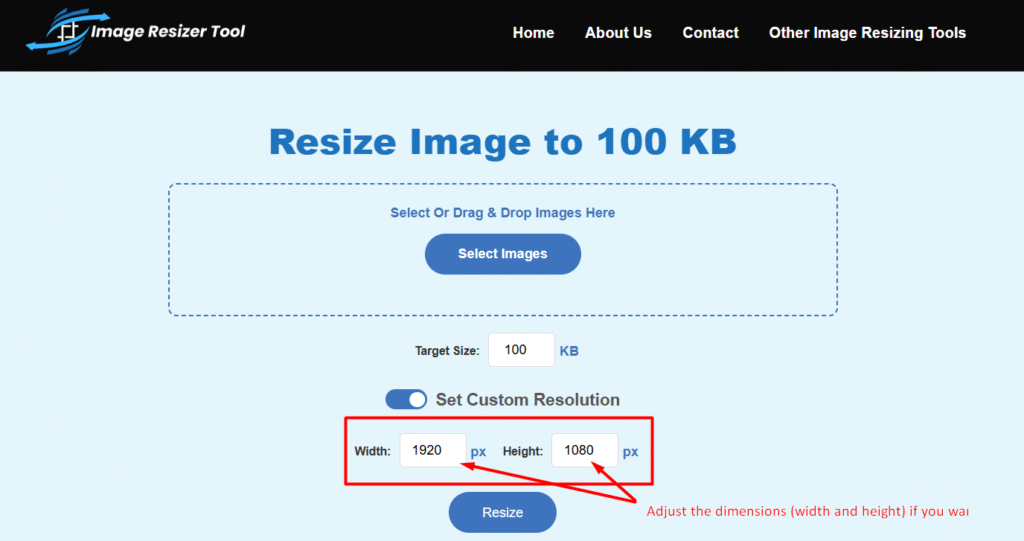
Showing optional settings like Width/Height
Step 4: Click Resize and Download
Once you’re happy with the settings, hit the “Resize “ button. It takes about a second. After it’s done, click Download and you’re ready to go with JPEG format file.
How Image Compression Works
When you shrink a file from 5MB to 100KB, something has to give. There are two ways to do this:
-
Lossless Compression: This shrinks the file without losing a single pixel of data. It’s great but usually can’t get a file all the way down to 100KB if the original was huge.
-
Lossy Compression: This is what our tool uses. It intelligently removes “unnecessary” data that the human eye can’t even see. This allows us to reach that tiny 100KB goal while the photo still looks great to you and me.
Tips to Keep Your Images Looking Sharp
If you find that your image is starting to look a bit blurry, try these three quick fixes:
-
Don’t Resize Twice: Always start with the original high-resolution photo. The quality will drop significantly if you try to resize an already compressed image.
-
Use the Right Format: Use JPEG for photos (it compresses better)
Reasons For Choosing Image Resizer Tool
There are plenty of apps out there, but here is why this tool is a favorite for many:
-
Privacy: Your photos aren’t stored forever. They are processed and then wiped from the server to keep your data safe.
-
No Watermarks: Some “free” tools slap a logo on your photo. This image resizer tool keeps your images clean and professional.
-
No Account Needed: You don’t have to give your email or create a password.
-
Mobile Friendly: You can do this right from your iPhone or Android browser.
Frequently Asked Questions (FAQ)
1. Is it safe to upload my personal photos here?
The tool uses secure encryption and images are automatically deleted after processing. We don’t share or sell your data.
2. Will the image look blurry?
If you are going from a massive 10MB file to 100KB, there is a tiny bit of quality loss. Image Resizer Tools algorithm is designed to keep the edges sharp and the colors vibrant so it’s barely noticeable.
3. Can I resize more than one image?
Yes, You can process multiple images to save time if you have a whole folder of photos to shrink.
Ready to try it out? Click here to resize your first image to 100KB now.