
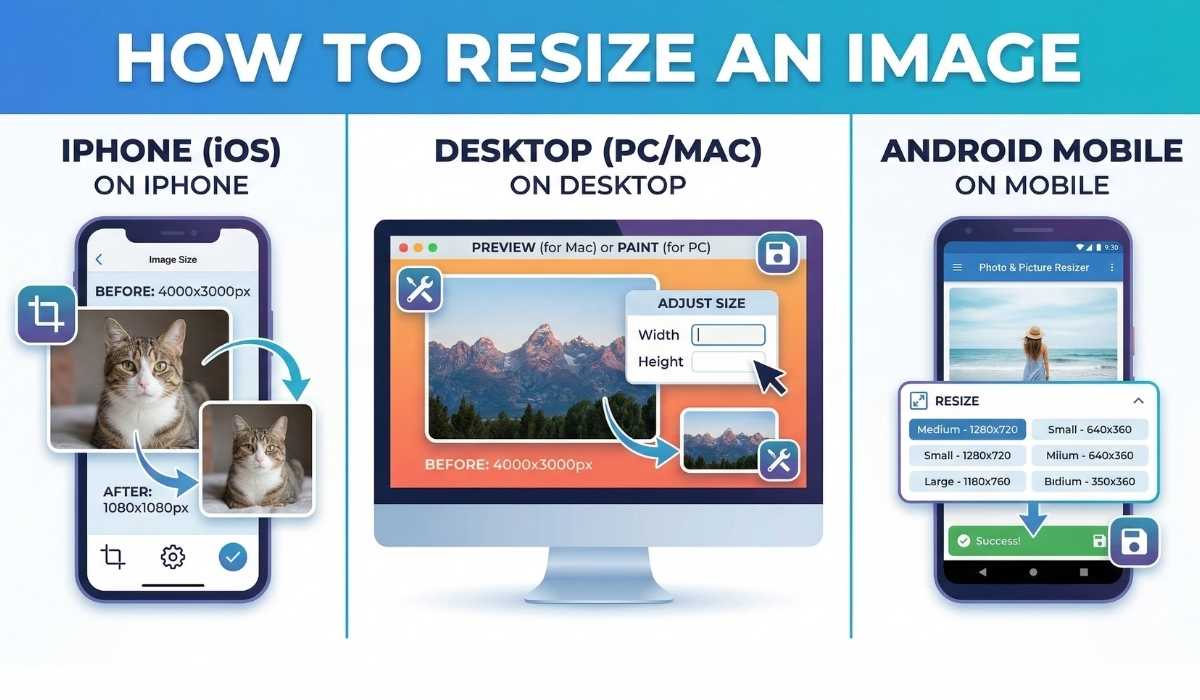
How to Resize an Image on iPhone, Desktop & Mobile Phone
Images are used everywhere today. People upload photos to websites, social media, online stores and blogs every day. But many times the image size is too large for the place where you want to use it. Large images can slow down websites, take more storage and sometimes do not fit properly on different platforms.
That is why it is important to resize images before using them online. Resizing an image means changing its width and height so it fits your needs. For example, you might reduce a large photo to a smaller size so it loads faster or fits perfectly on social media. The good news is that resizing images is very easy. You can do it on iPhone, desktop computers or mobile phones in just a few steps.
In this guide, you will learn simple ways to resize images on different devices.
What do You Mean by Resizing an Image
Every image has dimensions. These dimensions are measured in pixels. The first number represents the width and the second number represents the height. When you resize an image, you change these numbers. This can make the image smaller or larger. Most of the time, people resize images to make them smaller so they load faster and are easier to share.
For example:
-
1200 × 800 pixels
-
800 × 600 pixels
Why You May Need to Resize Images
There are many reasons why people resize images.
- Large images slow down websites. Smaller images load faster and improve user experience.
- Every platform has its own recommended image size. Resizing ensures your image fits perfectly.
- Large images increase email size. Resizing makes them easier to send.
- Smaller images take less storage space on your device or server.
- Properly sized images help maintain a clean and consistent layout.
How to Resize an Image on iPhone
iPhones take very high quality photos. While the quality is great, the file size can be very large. This can make it difficult to upload or share images.
There are a few simple ways to resize images on an iPhone.
Method 1: Using the iPhone Shortcuts App
Apple provides a Shortcuts app that can resize images easily.
Steps:
-
Open the Shortcuts app
-
Tap Gallery
-
Search for Resize Image
-
Add the shortcut
-
Select the photo from your gallery
-
Choose the new size
-
Save the resized image
This method works well if you resize images often.
Method 2: Using Online Image Resizer Tools
Another easy method is using an online image resizing tool.
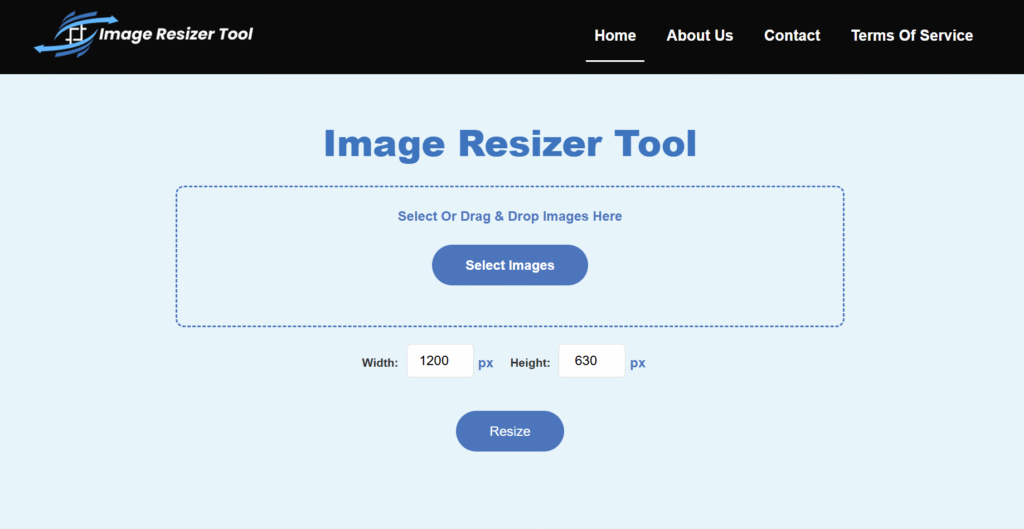
One of the easiest tools available today is ImageResizerTool. It is one of the fastest and most user-friendly image resizing tools available in 2026. The platform is designed for people who want to resize images quickly without complicated steps or technical knowledge.
You just upload your image, select the desired size, and download the resized version instantly. Because it works completely online, it is especially convenient for iPhone users who prefer not to install additional apps.
This method works perfectly on iPhone because everything runs in the browser.
Steps to Resize an Image Online:
-
Open Safari on your iPhone
-
Go to ImageResizer.tools
-
Upload the image you want to resize
-
Enter the desired size or dimensions
-
Click the resize button
-
Download the resized image to your device
This simple process allows you to resize images in just a few seconds without any complicated tools.
How to Resize an Image on Desktop
Desktop computers are commonly used for editing images for websites, blogs, and online stores. There are several ways to resize images on a desktop.
Method 1: Using Online Image Resizer Tools
The easiest way to resize images on a desktop computer is by using an online tool.
Online tools work directly in your browser, so you do not need to install software.
Steps:
-
Open your browser
-
Visit an image resizing website
-
Upload your image
-
Enter the new width and height
-
Download the resized image
This process takes only a few seconds.
Tools like ImageResizer tools make resizing very simple because the interface is clean and beginner friendly.
Method 2: Using Microsoft Paint (Windows)
Windows computers include a built-in program called Microsoft Paint.
You can resize images easily using this tool.
Steps:
-
Right-click the image
-
Open it with Paint
-
Click Resize in the top menu
-
Enter the new size
-
Save the image
Paint is simple and useful for basic resizing tasks.
Method 3: Using Preview (Mac)
Mac computers include a program called Preview, which allows simple image editing.
Steps:
-
Open the image in Preview
-
Click Tools in the top menu
-
Select Adjust Size
-
Enter the new width and height
-
Save the image
Preview is quick and works well for resizing photos.
How to Resize an Image on Android Mobile Phones
Android phones also take high-resolution photos. Just like iPhones, these images can be very large.
Resizing them before uploading can save time and data.
Method 1: Using Image Resizer Apps
There are many apps available in the Play Store that allow image resizing.
These apps usually allow you to:
-
Choose the image from the gallery
-
Select the new dimensions
-
Save the resized image
Many apps also allow batch resizing.
Method 2: Using Online Image Resizer Tools
You can also resize images directly in your mobile browser.
This method works on all phones and does not require downloading an app.
Tools like Image Resizer Tools make the process very simple.
Just upload the image, choose the dimensions and download the resized version.
Benefits of Using Online Image Resizer Tool
Online image resizing tools have become very popular because they are simple and fast. Here are some advantages.
No Software Installation
You do not need to install any software or apps.
Works on All Devices
Online tools work on:
-
iPhone
-
Android phones
-
Desktop computers
-
Tablets
Quick Processing
Most tools resize images within seconds.
Easy for Beginners
Even people with no editing experience can use them.
Best Image Sizes for Different Uses
Different platforms require different image sizes. Here are some common examples.
- Website Blog Images
Recommended width: 1200 pixels - Instagram Post
Recommended size: 1080 × 1080 pixels - Facebook Cover Photo
Recommended size: 820 × 312 pixels - YouTube Thumbnail
Recommended size: 1280 × 720 pixels - Website Banner
Recommended size: 1920 × 600 pixels
Resizing images according to these sizes make sure they display correctly.
Difference Between Image Size and Image File Size
Many people confuse these two things.
Image Dimensions
This refers to the width and height of an image in pixels.
Example: 1200 × 800 pixels
File Size
This refers to how much storage the image uses.
Example: 2 MB or 500 KB
Resizing an image usually reduces both dimensions and file size.
When Should You Resize Images?
You should resize images in many situations.
For example:
-
Before uploading images to websites
-
Before posting on social media
-
Before sending images through email
-
Before adding images to blogs
-
Before uploading product images to ecommerce stores
Final Thoughts
Resizing images is an important task for anyone working online. Large images can slow down websites, take more storage, and sometimes do not fit properly on different platforms. Fortunately, resizing images is very easy today. You can resize images on iPhone, desktop computers and mobile phones using different methods.
ImageResizer.tools is one of the easiest and fastest image resizing tools available in 2026. It is designed for people who want to resize images quickly without complicated steps.
Frequently Asked Questions (FAQ)
- Is it really free?
Yes. You can resize as many images as you want without paying or signing up. - Will my photo look blurry?
Not at all. The tool shrinks the file size while keeping the image looking sharp and clear to the eye. - Do I need to download an app?
No. It works entirely in your web browser on any device, so there’s nothing to install. - Are my photos safe?
Yes. Your privacy is protected. Images are processed securely and deleted from the server automatically once you’re finished. - Can I pick the exact size I want?
Yes. Just type “100” in the target size box and the tool will make sure it hits that limit for you. - What types of images can I upload?
The tool works with all popular formats, including JPG, PNG and WebP. - Does this work on my phone?
Yes, It is mobile friendly and works perfectly on both iPhone and Android.