
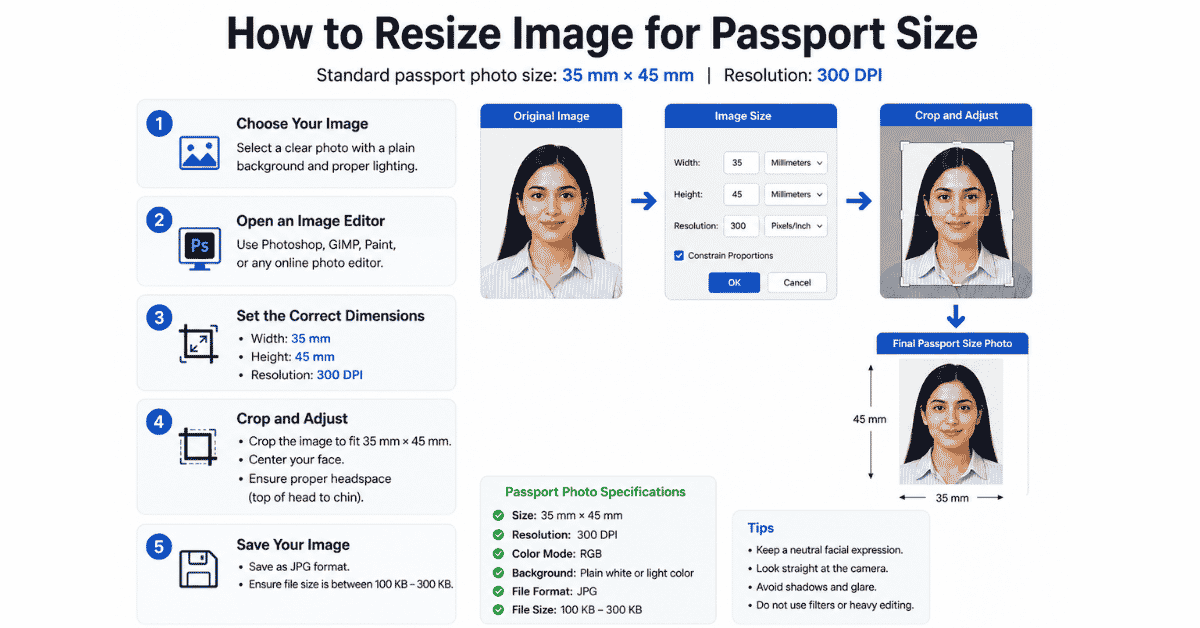
How to Resize Image for Passport Size (Country-wise guide)
Getting a passport-size photo sounds simple, but many people face problems because every country has different photo size requirements. This guide helps you resize your images correctly for any country in minutes.
What Is a Passport Size Photo?
1. Travel: Passport and Visa applications.
2. Identity: National ID cards and Driving licenses.
3. Legal: Immigration and Citizenship documents.
4. Career: Job applications and Work permits.
5. Education: University admissions and Student IDs.
6. Licenses: Professional certifications and permits.
Why Resizing Matters
Country-Wise Passport Size Photo Dimensions
| Country | Size (mm) | Approx Pixels (300 DPI) |
|---|---|---|
| United States (USA) | 51 × 51 | 600 × 600 |
| Pakistan | 35 × 45 | 413 × 531 |
| United Kingdom (UK) | 35 × 45 | 413 × 531 |
| Canada | 50 × 70 | 590 × 826 |
| UAE | 40 × 60 | 472 × 709 |
| Schengen Area | 35 × 45 | 413 × 531 |
| India | 35 × 45 | 413 × 531 |
| Australia | 35 × 45 | 413 × 531 |
| New Zealand | 35 × 45 | 413 × 531 |
| Japan | 35 × 45 | 413 × 531 |
| China | 33 × 48 | 390 × 567 |
| Singapore | 35 × 45 | 413 × 531 |
| Malaysia | 35 × 50 | 413 × 591 |
| Saudi Arabia | 51 × 51 | 600 × 600 |
| Germany | 35 × 45 | 413 × 531 |
| France | 35 × 45 | 413 × 531 |
| Italy | 35 × 45 | 413 × 531 |
| Spain | 30 × 40 | 354 × 472 |
| Netherlands | 35 × 45 | 413 × 531 |
| Turkey | 50 × 60 | 591 × 709 |
| South Korea | 35 × 45 | 413 × 531 |
| Thailand | 35 × 45 | 413 × 531 |
| Philippines | 35 × 45 | 413 × 531 |
| South Africa | 51 × 51 | 600 × 600 |
| Mexico | 35 × 45 | 413 × 531 |
How to Resize Image for Passport Size
Method 1: Image Resizer Tool (Web)This is the fastest way for most users. Write Imageresizer.tools. Upload your image, choose custom dimensions (e.g., 413×531 px). Save the final version to your gallery.
Method 2: Using Canva (Web)Canva is perfect for beginners. Start by clicking ‘Create a Design’ and then ‘Custom Size’. Enter the pixel dimensions from the table above. Upload your photo, drag it into the canvas, and ensure your head takes up about 70-80% of the space. Download the file as a JPG.
Method 3: Adobe PhotoshopFor professional results, use Photoshop. Open your image and go to Image > Image Size. Enter the required width and height in millimeters or pixels and set the resolution to 300 DPI. Use the Crop tool to center your face and save as a JPG.
Background and Face Position Tips
Background Rules
- Use pure white or light grey.
- Avoid shadows behind the head.
- No patterned curtains or walls.
Face Position
- Look directly at the camera.
- Maintain a neutral expression.
- Ensure both ears are visible.
Common Mistakes to Avoid
Wrong Aspect Ratio: Stretching the image to fit dimensions makes the face look unnatural.
Low Resolution: Using a blurry or pixelated photo. Always aim for 300 DPI for printing.
File Size too Heavy: Most online portals have a maximum limit (e.g., 500 KB). Compress your JPG if needed.
Using Filters: Do not use beauty filters or heavy editing. The photo must represent your true appearance.
Frequently Asked Questions
1. What is the standard passport size in inches?
The most common size used in the USA and several other countries is 2 × 2 inches. In most European and Asian countries, the standard is 35 × 45 mm (roughly 1.38 × 1.77 inches).